

விளக்கம்
Add scroll based animations to WordPress Gutenberg blocks.
Features
- Choose from 76 cross-browser CSS3 animations or add your own
- Preview animations in the editor
- Adjust the animation duration, delay, scroll threshold, and offset
- Apply animation controls directly to regular Gutenberg blocks
- Show or hide animation controls for regular blocks from Settings > Animated Blocks
- Replay the selected dropdown animation from the editor inspector
Settings
- Duration: The speed of the animation in milliseconds.
- Delay: How many milliseconds to wait before animating the element.
- Threshold: Add animation when x% of the element enters the screen.
- Start with opacity 0: Set the element to opacity 0 when the page loads. The option works for elements transitioning to 100% opacity through CSS.
- Offset Top (available in the block’s advanced settings): Number of pixels to offset the animated block from the top of the page. Useful when a page has a fixed top navigation bar.
- Show animation controls on all blocks: Enable or disable animation controls for regular Gutenberg blocks. When disabled, blocks that already have saved animation settings keep showing the controls until those settings are cleared.
- Class name “ab-animation-end” is added to the animated block after the CSS animation has ended. This class name can be used to add custom styles.
Requirements
PHP 5.6+ is recommended, WordPress 5.0+, and Gutenberg must be active.
Documentation
Select a Gutenberg block and open the block settings sidebar to find the Animations panel. Choose an animation from the dropdown, optionally add a custom animation class, and adjust duration, delay, threshold, opacity, and offset settings. The selected animation classes are added when the block enters the viewport.
Animation controls can be disabled globally from Settings > Animated Blocks by turning off “Show animation controls on all blocks”. When that option is disabled, blocks that already have saved animation settings will keep showing the animation panel until those settings are cleared.
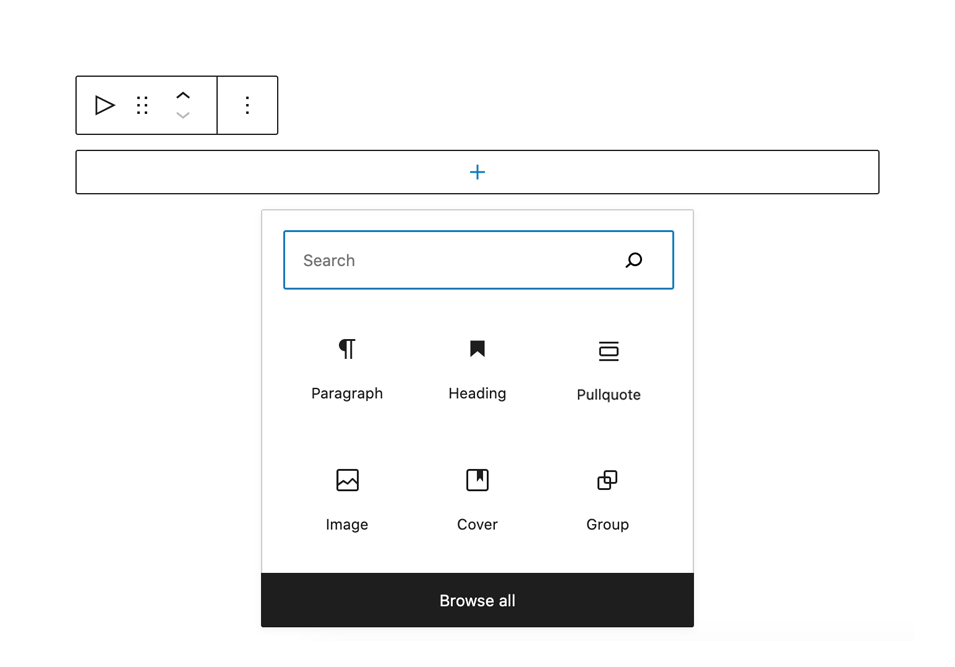
You can also use the Animated Block container from the Design block group. Animated Block is a parent block that lets you nest as many blocks as you want and apply the same animation settings to the whole container.
If you need a custom effect, enter your own CSS class name in the Custom animation field and load the matching CSS in your theme or plugin.
Screenshots




தொகுப்புகள்
இந்த செருகுநிரல் 1 தொகுதியை வழங்குகிறது.
- Animated Block Add blocks into the container.
அடிக்கடி கேட்கப்படும் கேள்விகள்
Installation
Go to your WordPress Admin -> Plugins -> Add New. Search for Gutenberg Animated Blocks. Install and Activate. You can also download this folder and add it into your plugins directory.
“Animated Block” will be added to the Design block group.
What is Gutenberg?
Gutenberg is the name of the new block based editor introduced in WordPress 5. Gutenberg makes it easy to create content within the editor using blocks.
How do I add animation to a normal Gutenberg block?
Select any supported block, open the block inspector sidebar, and look for the Animations panel. Choose an effect such as fade, bounce, slide, or zoom, then save the post and view it on the front end.
Can I animate a group of blocks together?
Yes. Insert the Animated Block container from the Design block group and place any inner blocks inside it. The animation settings apply to the container as a whole.
Does this plugin work with scroll reveal and entrance animations?
Yes. The plugin adds CSS animation classes when the block reaches the configured scroll threshold, making it suitable for scroll reveal, fade in on scroll, slide in on scroll, zoom in on scroll, and similar entrance effects.
Can I use Animate.css classes or my own custom CSS animations?
Yes. The plugin includes a list of predefined animation classes and also allows you to enter a custom class name. You can pair that custom class with your own CSS animation rules in your theme or another plugin.
How does delay work?
Delay controls how long the plugin waits before adding the animation classes after the block reaches the trigger point in the viewport. Duration controls how long the CSS animation itself runs.
What does threshold mean?
Threshold is the percentage of the block that must enter the viewport before the animation starts. Lower values trigger earlier, while higher values wait for more of the block to become visible.
Yes. Use the Offset Top field in the block’s Advanced settings to account for fixed headers, sticky menus, or other content pinned to the top of the page.
Can I disable animation controls for regular blocks?
Yes. Go to Settings > Animated Blocks and disable “Show animation controls on all blocks”. Existing blocks with saved animation settings will keep their controls until those settings are removed.
What class is added when the animation has finished?
The class name “ab-animation-end” is added after the CSS animation ends. You can target that class in custom CSS if you need different end-state styling.
Reviews


பங்களிப்பாளர்கள் & உருவாக்குனர்கள்
“Animated Blocks on Scroll” is open source software. The following people have contributed to this plugin.
பங்களிப்பாளர்கள்
Translate “Animated Blocks on Scroll” into your language.
Interested in development?
Browse the code, check out the SVN repository, or subscribe to the development log by RSS.
Changelog
1.0.0
First release of the plugin.
1.0.3
Animation settings in individual blocks by extending the block API is no longer supported in the plugin. The InnerBlocks component was implemented, enabling nested block content and more flexibility. Select “Animated Block” from the “Layout Elements” group and add whatever content blocks you’d like. Select Animated Block to see animation settings.
1.0.4
Updated enqueue function to work on WordPress 5.0
1.0.5
Updated/fixed animation previews in the editor.
Class “ab-end” is now added to elements when a CSS animation is completed.
1.0.6
Fixed jQuery warning
Updated for the latest WordPress version
1.1.0
Tested for WordPress 5.9
Added block.json
Added animation duration option
Added offset option (available in the block’s Advanced settings)
Fixed animation opacity issues
Renamed class ab-hidden to ab-is-hidden
Renamed class ab-end to ab-animation-end
1.1.1
Updated to the latest scrollClass.js
Reverted to milliseconds for duration and delay
1.1.2
Tested on the latest WP version
1.1.3
Refactor block asset enqueue flow, add class guard, and synchronize version metadata
1.1.4
Use editor-canvas block assets hook for animate.css
1.1.5
Added animation controls for regular Gutenberg blocks
Added a WordPress settings page at Settings > Animated Blocks
Added the “Show animation controls on all blocks” option
Kept animation controls visible for blocks with existing saved animation data when global controls are disabled
Added a None animation option and a quick action to clear all animation settings from a block
Added a replay button next to the animation dropdown in the editor
1.1.6
ServerSideRender compatibility for animated attributes on dynamic blocks.
Update Animated Block to Block API version 3.